> ## Documentation Index
> Fetch the complete documentation index at: https://docs.greenflash.ai/llms.txt
> Use this file to discover all available pages before exploring further.
# User Segments
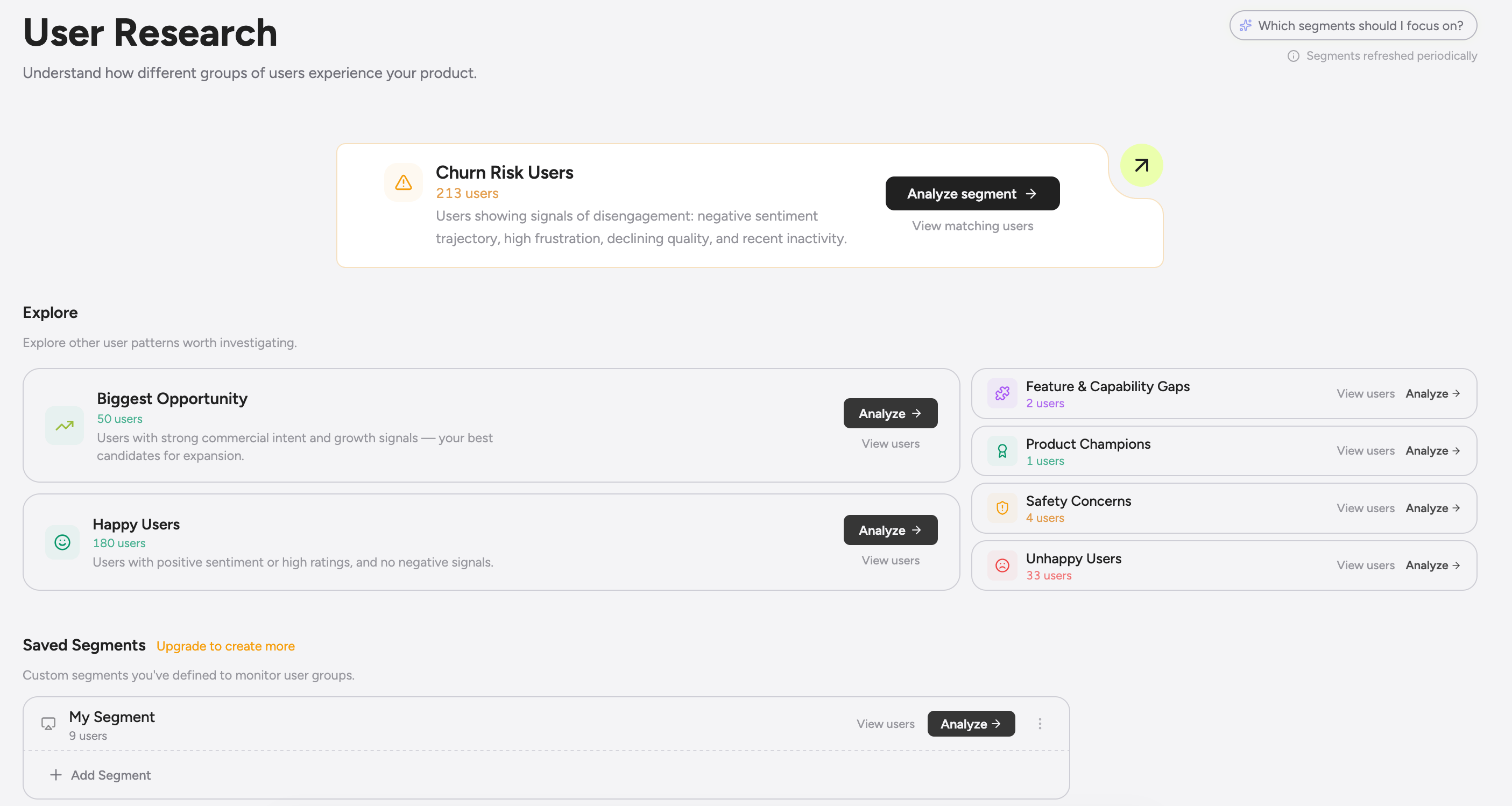
> User Research workspace built around segments. Seven system cohorts populated on day one, a visual builder for custom segments, and the ability to scope any analysis in Greenflash to any cohort you can build.
Most "users" pages are flat lists you scroll through hoping a pattern shows up. The User Research workspace flips that around. You start from a cohort that already matters (Churn Risk, Product Champions, or one you built yourself) and read your way down from there. Segments are real objects in Greenflash, not saved filter URLs; once you have one, you can scope analyses to it, share it, push it to Linear, or export it.
 CQI (**Conversation Quality Index**) shows up throughout this page. It's a 0–100 score that rates each conversation across all of Greenflash's analyses and quality levers. Think of it as a "how did this go?" number for AI products. Higher is better.
## The User Research workspace
The page has three sections:
* **Spotlight.** The segment that needs attention right now. Usually Churn Risk, but it adapts based on what's actually moving. You see the count, the week-over-week delta, and a sample conversation to read.
* **Explore grid.** Every system segment as a tile with live counts and a sparkline. Built for scanning, not for clicking.
* **Saved cohorts.** Your custom segments, ordered however your team wants. Favorites float to the top.
Click any segment and the rest of the users workspace pivots through that filter. The filter state lives in the URL, so a deep-linked cohort view drops into Slack or a PR comment without anyone having to recreate it.
## Seven prebuilt cohorts to get you started
Every workspace ships with these seven segments auto-populated, so you have something useful to look at on day one without having to define anything yourself:
| Segment | Definition |
| ----------------------- | ----------------------------------------------------------------------------------- |
| **Churn Risk Users** | Negative sentiment trajectory + rising frustration + declining engagement + low CQI |
| **Product Champions** | High satisfaction + repeat conversations + positive sentiment |
| **Biggest Opportunity** | Commercial intent signals + multi-conversation volume |
| **Happy Users** | Sentiment score ≥ 0.7 |
| **Unhappy Users** | Sentiment score ≤ 0.3 |
| **Safety Concerns** | Toxicity, jailbreak, or bias flags detected |
| **Feature Gaps** | Capability gap signal triggered |
Treat these as a starting point, not the right answer for your product. They're useful out of the box and they stay current as we tune the composite definitions, but the real cohorts that matter for *your* business almost always come out of the visual builder below. Most teams use the prebuilt ones to figure out what they actually want to track, then build their own.
## Visual builder for custom segments
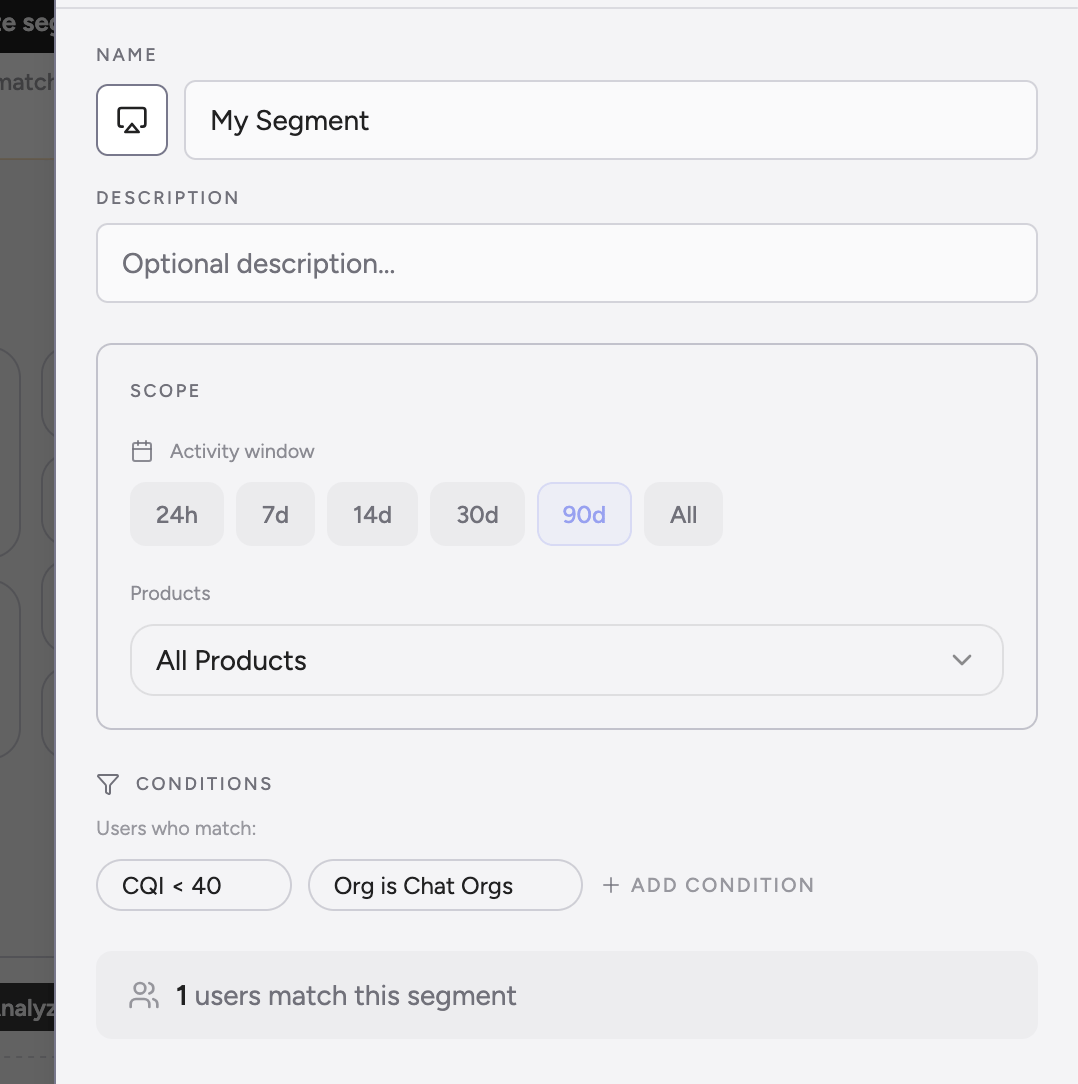
Need a different cut? The visual builder lets you stack filters with the count updating live, so you know whether you have a workable cohort before you bother saving it.
You can filter on:
* **Analysis metrics:** sentiment, frustration, struggle, commercial intent, CQI, rating.
* **Analysis flags:** jailbreak, hallucination, toxicity, bias, missing capability.
* **User properties:** any custom attribute you log (`plan`, `tier`, `country`, etc.).
* **Conversation properties:** any conversation-level metadata you've attached.
* **Conversation count:** how many conversations the user has had.
* **Last seen:** when the user was last active.
Stack as many predicates as you need, then layer global filters on top: a date range preset (`7d`, `30d`, `90d`, `all`), a specific product, or a specific prompt version.
CQI (**Conversation Quality Index**) shows up throughout this page. It's a 0–100 score that rates each conversation across all of Greenflash's analyses and quality levers. Think of it as a "how did this go?" number for AI products. Higher is better.
## The User Research workspace
The page has three sections:
* **Spotlight.** The segment that needs attention right now. Usually Churn Risk, but it adapts based on what's actually moving. You see the count, the week-over-week delta, and a sample conversation to read.
* **Explore grid.** Every system segment as a tile with live counts and a sparkline. Built for scanning, not for clicking.
* **Saved cohorts.** Your custom segments, ordered however your team wants. Favorites float to the top.
Click any segment and the rest of the users workspace pivots through that filter. The filter state lives in the URL, so a deep-linked cohort view drops into Slack or a PR comment without anyone having to recreate it.
## Seven prebuilt cohorts to get you started
Every workspace ships with these seven segments auto-populated, so you have something useful to look at on day one without having to define anything yourself:
| Segment | Definition |
| ----------------------- | ----------------------------------------------------------------------------------- |
| **Churn Risk Users** | Negative sentiment trajectory + rising frustration + declining engagement + low CQI |
| **Product Champions** | High satisfaction + repeat conversations + positive sentiment |
| **Biggest Opportunity** | Commercial intent signals + multi-conversation volume |
| **Happy Users** | Sentiment score ≥ 0.7 |
| **Unhappy Users** | Sentiment score ≤ 0.3 |
| **Safety Concerns** | Toxicity, jailbreak, or bias flags detected |
| **Feature Gaps** | Capability gap signal triggered |
Treat these as a starting point, not the right answer for your product. They're useful out of the box and they stay current as we tune the composite definitions, but the real cohorts that matter for *your* business almost always come out of the visual builder below. Most teams use the prebuilt ones to figure out what they actually want to track, then build their own.
## Visual builder for custom segments
Need a different cut? The visual builder lets you stack filters with the count updating live, so you know whether you have a workable cohort before you bother saving it.
You can filter on:
* **Analysis metrics:** sentiment, frustration, struggle, commercial intent, CQI, rating.
* **Analysis flags:** jailbreak, hallucination, toxicity, bias, missing capability.
* **User properties:** any custom attribute you log (`plan`, `tier`, `country`, etc.).
* **Conversation properties:** any conversation-level metadata you've attached.
* **Conversation count:** how many conversations the user has had.
* **Last seen:** when the user was last active.
Stack as many predicates as you need, then layer global filters on top: a date range preset (`7d`, `30d`, `90d`, `all`), a specific product, or a specific prompt version.
 ## Run any analysis on any segment
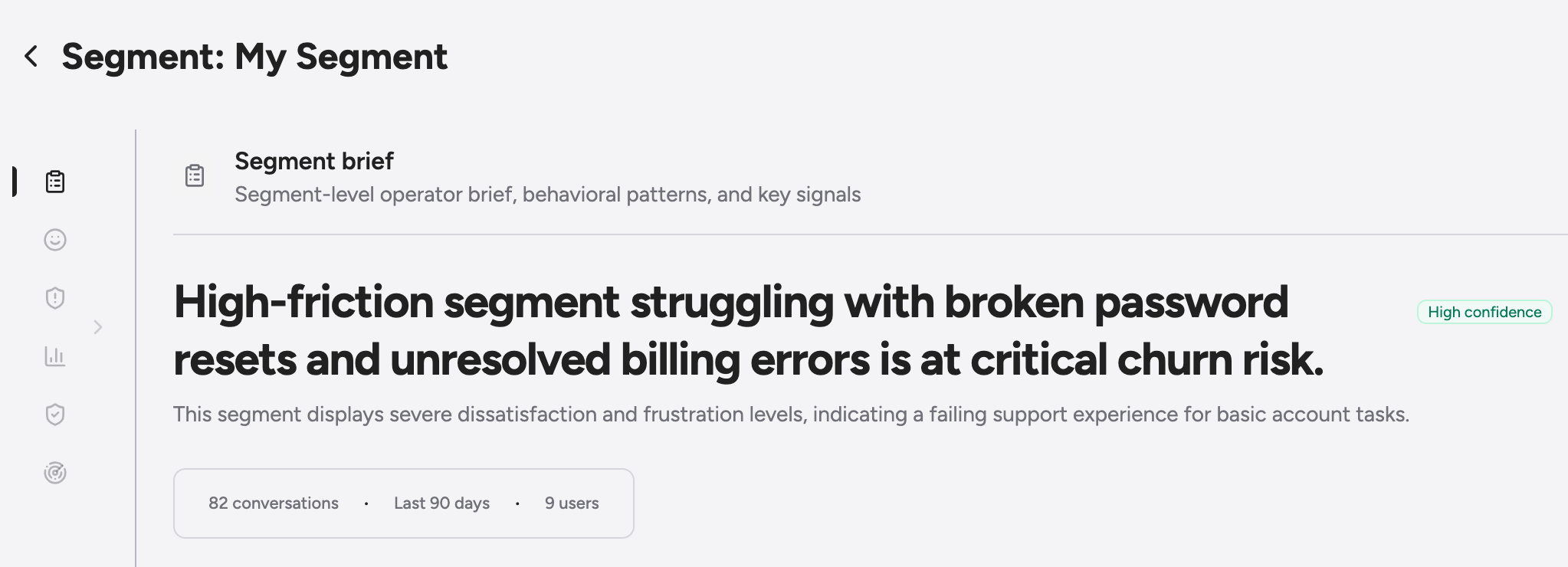
The list of segments is useful on its own. The real value is what you can do with them: **every analysis in Greenflash can be scoped to any segment you can build.** Pick a cohort, point an analysis at it, get answers for that slice of users only.
## Run any analysis on any segment
The list of segments is useful on its own. The real value is what you can do with them: **every analysis in Greenflash can be scoped to any segment you can build.** Pick a cohort, point an analysis at it, get answers for that slice of users only.
 ### Custom analyses on custom segments
This is where it gets interesting. Pair a custom segment with a [custom analysis](/features/custom-analyses) and you get a guardrail, expectation, or pattern detector that fires only for the users you care about, with thresholds you tune for that cohort.
A worked example: you build a segment for "enterprise users with five or more conversations in the past 30 days." Then you create an expectation analysis that checks "did the agent confirm pricing accurately?" and scope it to just that segment. Now the analysis runs on the conversations that matter for revenue (high-touch enterprise accounts) and skips the long tail. Results land in the inbox tagged with both the segment and the analysis, so your sales engineering team can review them without wading through unrelated conversations.
The same custom analysis can be scoped to multiple segments at once with different thresholds for each. A safety guardrail might fire at confidence ≥ 0.9 for everyone, but at ≥ 0.6 for users you've flagged as high-risk in a custom segment. You write the rule once, you apply it differently per cohort.
### Other analyses you can scope to a segment
* **Quality breakdowns.** Pull pillar scores (Satisfaction, Growth, Friction, Safety, Engagement) for any segment. Compare an enterprise cohort to a free cohort side by side and see where the gap actually is.
* **Sample conversation reads.** Open a segment and read a curated set of representative conversations from inside the cohort instead of from the whole product.
* **Segment-scoped briefs.** Get a weekly auto-generated brief on what's happening inside the segment, delivered to [Slack](/features/slack) or your inbox.
* **Ad-hoc questions.** Ask the [Greenflash agent](/intro/greenflash-agent) "what's driving churn risk this week?" and the answer is grounded in that segment's conversations, not the whole product.
## Other things you can do with a segment
* **Push to Linear.** Flag a cohort for engineering triage via the [Linear integration](/integrations/linear). The ticket carries the conversation context with it.
* **Export to CSV.** Pull the cohort with 21 user attributes (name, email, CQI, pillar scores, last-seen, conversation count, etc.). Useful for outreach, win-backs, or piping into a BI tool.
* **Pivot the workspace.** Drill in and the rest of the users workspace filters to that cohort. The URL is shareable.
* **Favorite.** Pin a segment to the top of saved cohorts so anyone on the team gets to it in one click.
## Use cases
### Save churn before it happens
Open the Churn Risk spotlight on Monday morning. Read the three sample conversations. The cause is usually one of three things: a regressed prompt, a model that started hallucinating, or a CS escalation that never got escalated. Most of the time you can fix it the same day.
### Investigate a quality drop in one cohort
CQI dropped 8 points last week and you want to know which users are pulling it down. Build a segment for "low CQI in the past 7 days" and read five conversations from inside. The pattern is almost always obvious by the third or fourth read.
### Find your loudest fans
Pull Product Champions as a CSV and hand it to your reference program. Pair the segment with a product filter to find champions of a specific feature you want to amplify in marketing.
### Spot commercial signals you're missing
Biggest Opportunity surfaces users with intent who keep coming back. Read three of their conversations, learn the pattern, then update your prompt to push the buying motion harder. The segment's conversion rate is the metric to watch.
### Cut a cohort for a launch
Launching a new feature for enterprise users in EMEA? Build `tier = enterprise` + `region = EMEA` + `conversationCount ≥ 5`. Save it, share the URL with the PM, then watch CQI for that cohort over the following weeks.
## Plan limits
| Feature | Free | Growth | Enterprise |
| -------------------------- | -------- | -------- | ---------- |
| System segments | Included | Included | Included |
| Custom segments | 1 | 5 | 10 |
| Segment analytics endpoint | — | Included | Included |
## API access
Programmatic access via the public API:
| Method | Path | Purpose |
| ------ | ----------------------------------- | --------------------------------------------------------------------------- |
| `GET` | `/v1/segments` | List all segments with member counts (paginated). |
| `GET` | `/v1/segments/:segmentId` | Get a single segment's metadata. |
| `GET` | `/v1/segments/:segmentId/analytics` | Conversations + summary metrics for a segment. Growth+ only. |
| `POST` | `/v1/segments` | Create a custom segment with name, description, filters, and favorite flag. |
| `GET` | `/v1/users/:userId/segments` | Get every segment a user currently belongs to. |
See the full schema in the [API Reference](/api-reference).
## Next steps
Scope guardrails and expectations to fire only for a specific segment.
Slice voice users by call-end classification, latency, and call success.
Push churn-risk and safety segments into engineering triage.
Pull segments into your warehouse, CRM, or in-product personalization.
### Custom analyses on custom segments
This is where it gets interesting. Pair a custom segment with a [custom analysis](/features/custom-analyses) and you get a guardrail, expectation, or pattern detector that fires only for the users you care about, with thresholds you tune for that cohort.
A worked example: you build a segment for "enterprise users with five or more conversations in the past 30 days." Then you create an expectation analysis that checks "did the agent confirm pricing accurately?" and scope it to just that segment. Now the analysis runs on the conversations that matter for revenue (high-touch enterprise accounts) and skips the long tail. Results land in the inbox tagged with both the segment and the analysis, so your sales engineering team can review them without wading through unrelated conversations.
The same custom analysis can be scoped to multiple segments at once with different thresholds for each. A safety guardrail might fire at confidence ≥ 0.9 for everyone, but at ≥ 0.6 for users you've flagged as high-risk in a custom segment. You write the rule once, you apply it differently per cohort.
### Other analyses you can scope to a segment
* **Quality breakdowns.** Pull pillar scores (Satisfaction, Growth, Friction, Safety, Engagement) for any segment. Compare an enterprise cohort to a free cohort side by side and see where the gap actually is.
* **Sample conversation reads.** Open a segment and read a curated set of representative conversations from inside the cohort instead of from the whole product.
* **Segment-scoped briefs.** Get a weekly auto-generated brief on what's happening inside the segment, delivered to [Slack](/features/slack) or your inbox.
* **Ad-hoc questions.** Ask the [Greenflash agent](/intro/greenflash-agent) "what's driving churn risk this week?" and the answer is grounded in that segment's conversations, not the whole product.
## Other things you can do with a segment
* **Push to Linear.** Flag a cohort for engineering triage via the [Linear integration](/integrations/linear). The ticket carries the conversation context with it.
* **Export to CSV.** Pull the cohort with 21 user attributes (name, email, CQI, pillar scores, last-seen, conversation count, etc.). Useful for outreach, win-backs, or piping into a BI tool.
* **Pivot the workspace.** Drill in and the rest of the users workspace filters to that cohort. The URL is shareable.
* **Favorite.** Pin a segment to the top of saved cohorts so anyone on the team gets to it in one click.
## Use cases
### Save churn before it happens
Open the Churn Risk spotlight on Monday morning. Read the three sample conversations. The cause is usually one of three things: a regressed prompt, a model that started hallucinating, or a CS escalation that never got escalated. Most of the time you can fix it the same day.
### Investigate a quality drop in one cohort
CQI dropped 8 points last week and you want to know which users are pulling it down. Build a segment for "low CQI in the past 7 days" and read five conversations from inside. The pattern is almost always obvious by the third or fourth read.
### Find your loudest fans
Pull Product Champions as a CSV and hand it to your reference program. Pair the segment with a product filter to find champions of a specific feature you want to amplify in marketing.
### Spot commercial signals you're missing
Biggest Opportunity surfaces users with intent who keep coming back. Read three of their conversations, learn the pattern, then update your prompt to push the buying motion harder. The segment's conversion rate is the metric to watch.
### Cut a cohort for a launch
Launching a new feature for enterprise users in EMEA? Build `tier = enterprise` + `region = EMEA` + `conversationCount ≥ 5`. Save it, share the URL with the PM, then watch CQI for that cohort over the following weeks.
## Plan limits
| Feature | Free | Growth | Enterprise |
| -------------------------- | -------- | -------- | ---------- |
| System segments | Included | Included | Included |
| Custom segments | 1 | 5 | 10 |
| Segment analytics endpoint | — | Included | Included |
## API access
Programmatic access via the public API:
| Method | Path | Purpose |
| ------ | ----------------------------------- | --------------------------------------------------------------------------- |
| `GET` | `/v1/segments` | List all segments with member counts (paginated). |
| `GET` | `/v1/segments/:segmentId` | Get a single segment's metadata. |
| `GET` | `/v1/segments/:segmentId/analytics` | Conversations + summary metrics for a segment. Growth+ only. |
| `POST` | `/v1/segments` | Create a custom segment with name, description, filters, and favorite flag. |
| `GET` | `/v1/users/:userId/segments` | Get every segment a user currently belongs to. |
See the full schema in the [API Reference](/api-reference).
## Next steps
Scope guardrails and expectations to fire only for a specific segment.
Slice voice users by call-end classification, latency, and call success.
Push churn-risk and safety segments into engineering triage.
Pull segments into your warehouse, CRM, or in-product personalization.